

Setup & Run Scripts
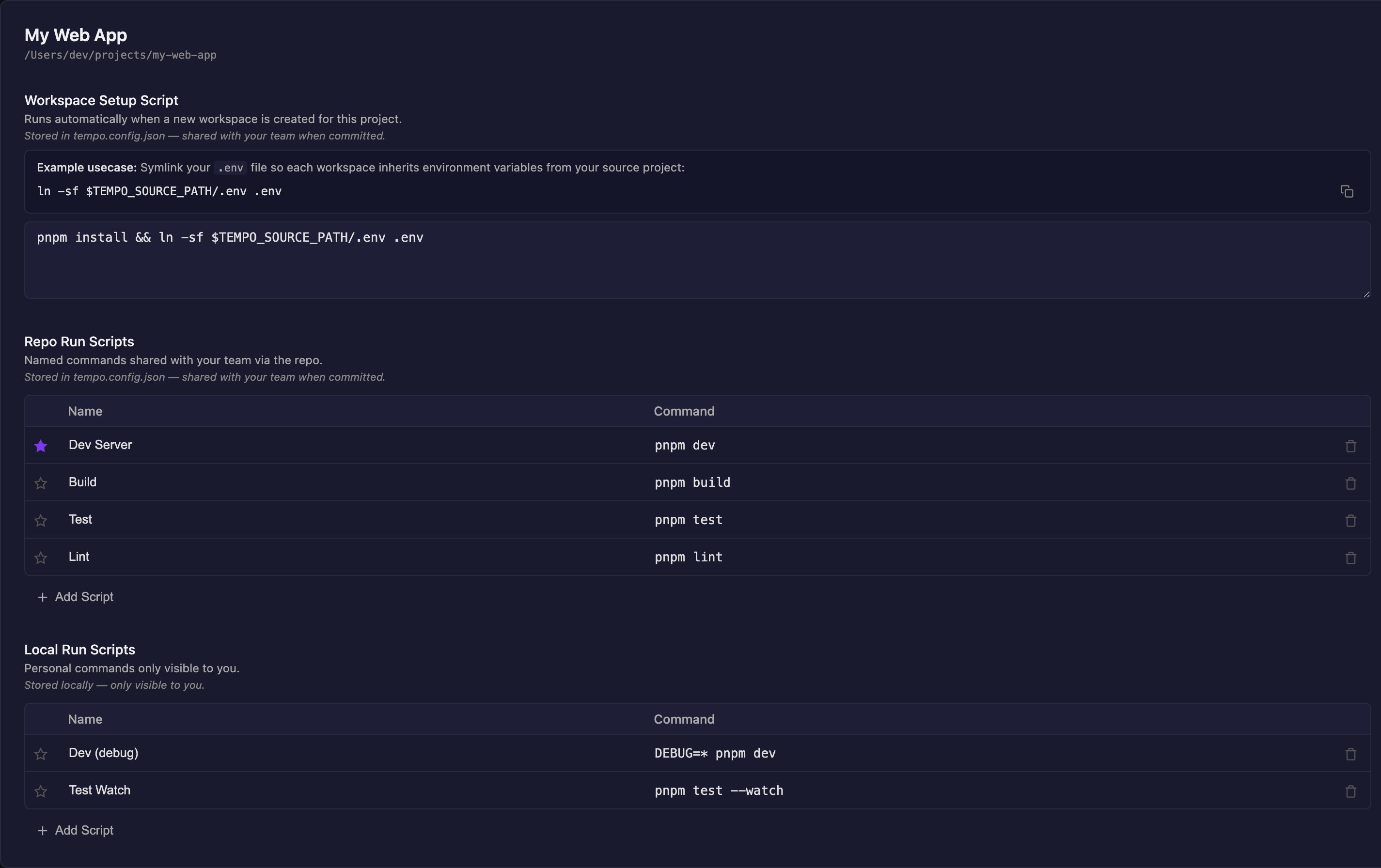
Tempo lets you configure setup scripts and run scripts for each project. Setup scripts run automatically when a new workspace is created, and run scripts are quick actions you can trigger from the header. Scripts are split into two categories based on where they’re stored:- Repo scripts are stored in
tempo/tempo.config.json(the canonical config location) and shared with your team when committed. This includes the Workspace Setup Script and Repo Run Scripts. - Private scripts are stored only on your device and are never shared. This includes the Private Setup Script and Private Run Scripts.
Setup Scripts
A setup script runs automatically every time a new workspace is created for a project. This is useful for tasks like symlinking environment files, installing dependencies, or any other initialization your project needs. There are two flavors:- Workspace Setup Script — stored in
tempo.config.json. When committed, every team member gets the same setup script automatically. - Private Setup Script — stored only on your device. Runs after the Workspace Setup Script. Use for personal symlinks (e.g.
.env.local) you don’t want to share with the team.
If both scripts are configured, the Workspace Setup Script runs first, then the Private Setup Script runs in a second terminal tab. Each is independent — a failure in one doesn’t block the other.
Configuring a setup script
- Open Settings from the sidebar
- In the Projects section, click the project you want to configure
- Enter your shared script in the Workspace Setup Script textarea, or your per-device script in the Private Setup Script textarea
- The script saves automatically when you click away
The TEMPO_SOURCE_PATH environment variable
When a setup script runs, Tempo injects the TEMPO_SOURCE_PATH environment variable. This contains the absolute path to your project’s original source directory (where you first imported the project from).
This is especially useful for symlinking files that shouldn’t be committed to git:
How it works
- The Workspace Setup Script is read from the
tempo.config.jsoninside the workspace at creation time - The Private Setup Script is read from your device’s local storage at the same moment
- Each runs in its own background terminal tab (they won’t steal focus from your current work)
- The tabs are titled “Setup Script” and “Private Setup Script” respectively
- If a script exits with a non-zero code, a toast notification appears to alert you
Run Scripts
Run scripts are named commands you can trigger from the header button. Use them for common tasks like starting a dev server, running tests, or building your project.Repo Run Scripts
Repo run scripts are stored intempo.config.json alongside the setup script. When committed, they’re shared with your entire team — everyone gets the same set of commands.
Great choices for repo run scripts:
- Dev Server:
pnpm devornpm run dev - Build:
pnpm build - Test:
pnpm test - Lint:
pnpm lint - Type Check:
pnpm tsc --noEmit
Private Run Scripts
Private run scripts are stored only on your machine. Use these for personal workflows that don’t need to be shared:- Debug mode:
DEBUG=true pnpm dev - Dev with specific port:
PORT=4000 pnpm dev - Watch tests:
pnpm test --watch
Configuring run scripts
- Open Settings and select your project
- Under Repo Run Scripts, click Add Script to add a shared script
- Under Private Run Scripts, click Add Script to add a personal script
- Enter a name (e.g., “Dev Server”) and a command (e.g.,
pnpm dev) - Click the star icon to set a script as the default action
The generated “App dev server” script
If your project has an app dev command configured intempo/tempo.config.json — canonically apps[0].appStart (the command Tempo uses to power route storyboards on the canvas; the legacy scripts.appStart spelling still works) — it automatically appears in the run-script dropdown as a read-only App dev server entry labeled Generated by Tempo. It can’t be edited or deleted from settings — change the app dev command to change it — and it acts as the default action unless you star another script. When run, its ${PORT} placeholder is resolved to the same port the canvas uses, so you never end up with two copies of your dev server.
Running scripts
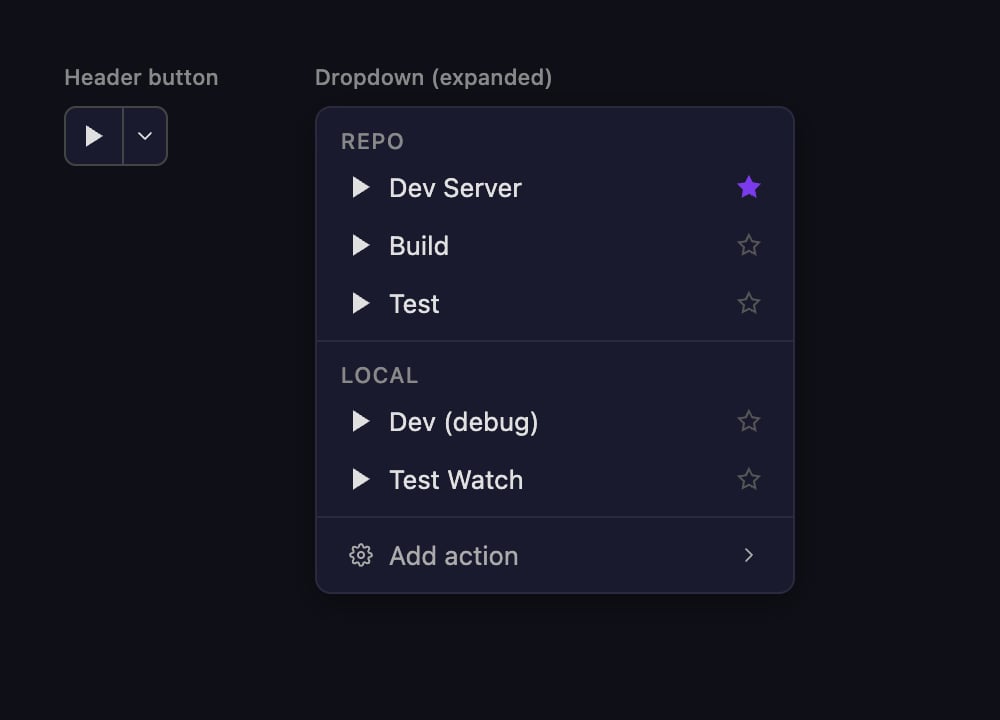
Once you have at least one run script configured (generated, repo, or private), a play button appears in the workspace header (to the left of the Commit button).- Click the play button to run the default script
- Click the dropdown arrow to see all configured scripts, grouped by Repo and Private
- Click the star icon in the dropdown to change the default without opening settings
- The dropdown also includes an “Add action” row that takes you to project settings
TEMPO_SOURCE_PATH environment variable is also available in run scripts.