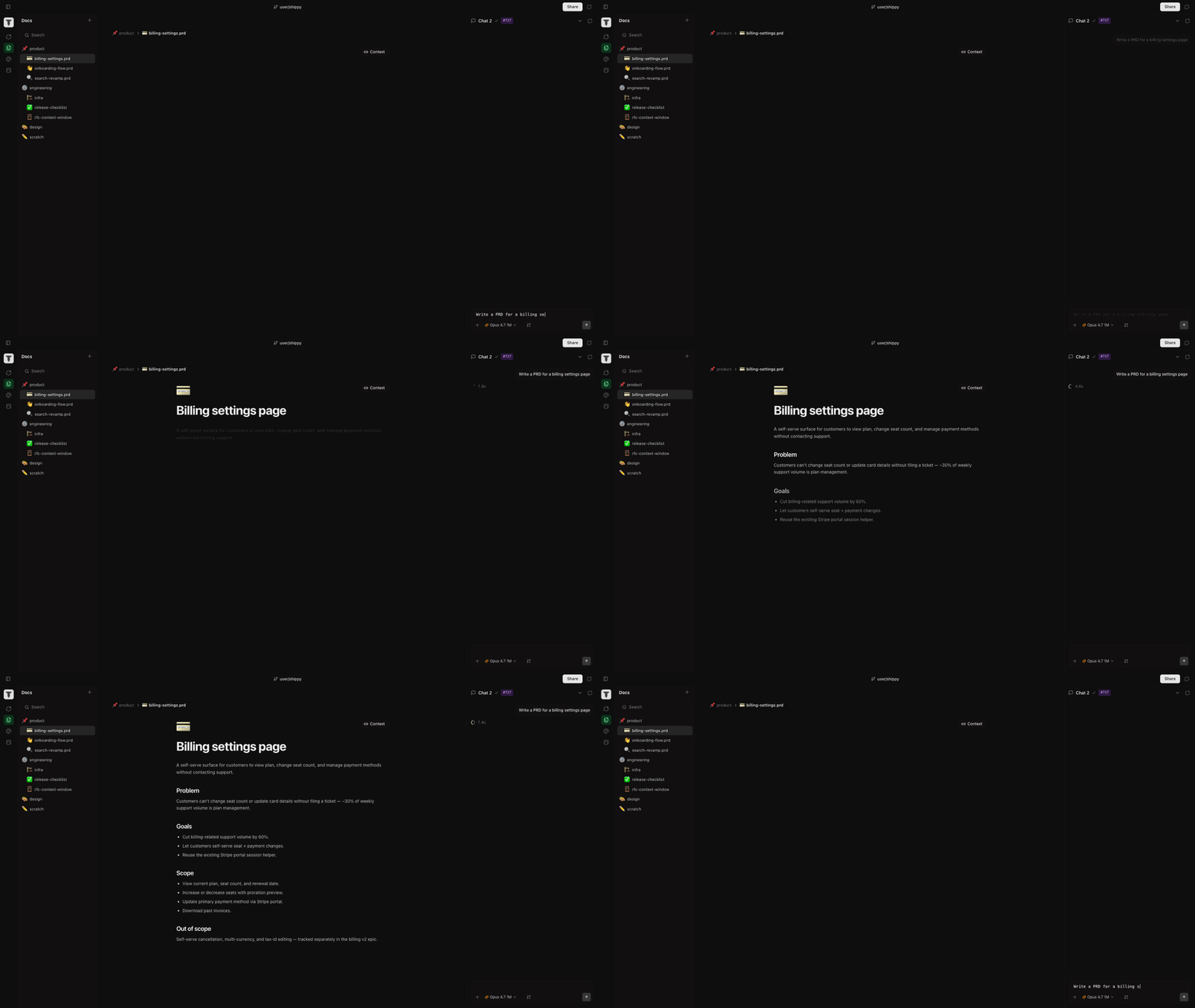

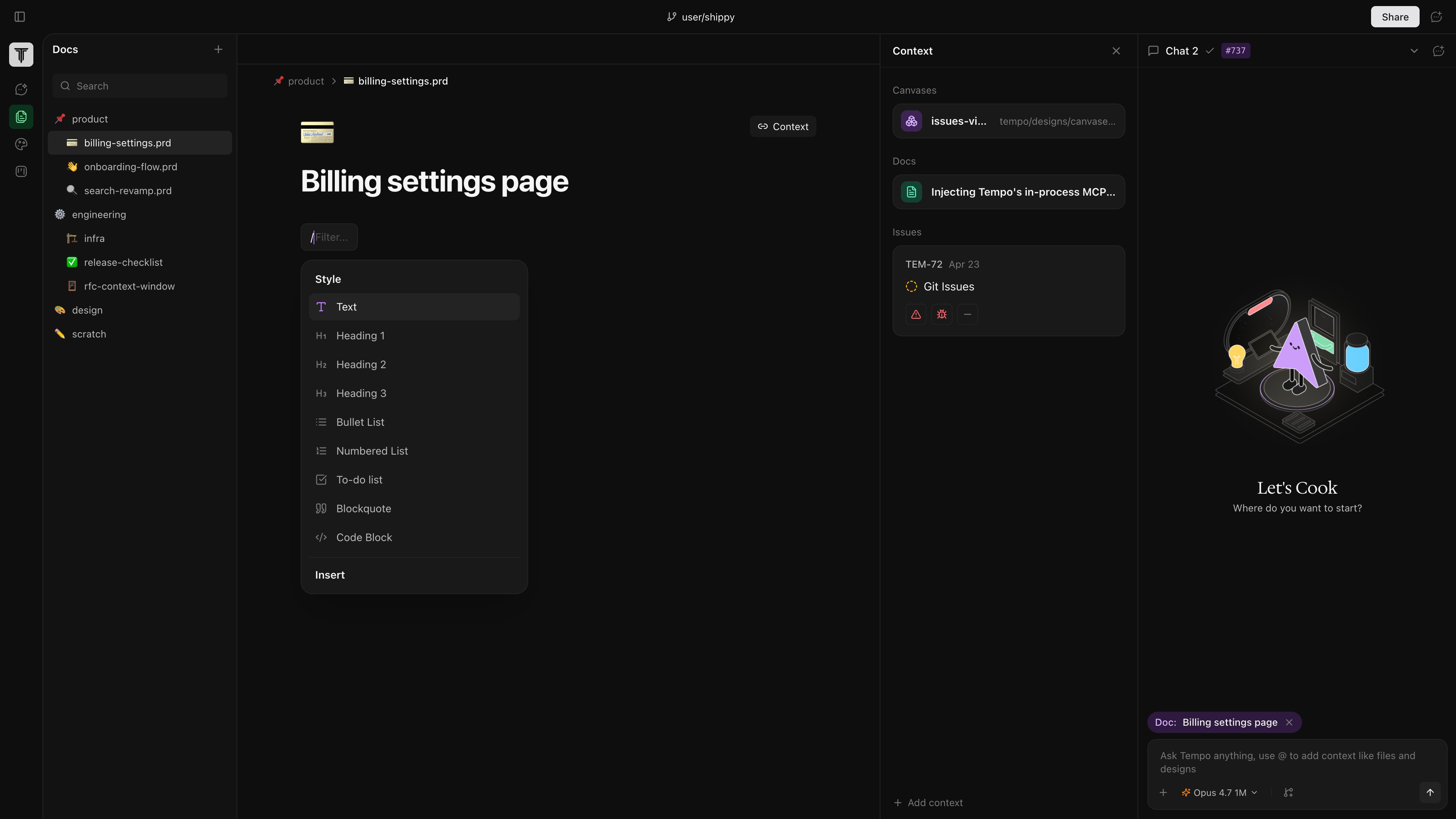
What you can write
- PRDs — product requirements for a feature.
- Specs — technical designs, RFCs, architectural notes.
- Project notes — meeting notes, decision logs, scratchpads.
How docs connect to the rest of Tempo
A doc on its own is just a document. The point is to link it to the work it describes:- Link a doc to a chat session and the agent loads it into context every turn — so when you ask “implement the spec,” it actually has the spec.
- Link a doc to an Issue and the card shows the PRD inline.
- Link a doc to a canvas so the design surface and the requirements live next to each other.
Drafting with AI
You can draft a PRD interactively by asking the AI: “write a PRD for the export-to-CSV feature.” The/prd-writer skill walks through the structure (goals, non-goals, user stories, success criteria) and writes it directly into the Docs tab.