

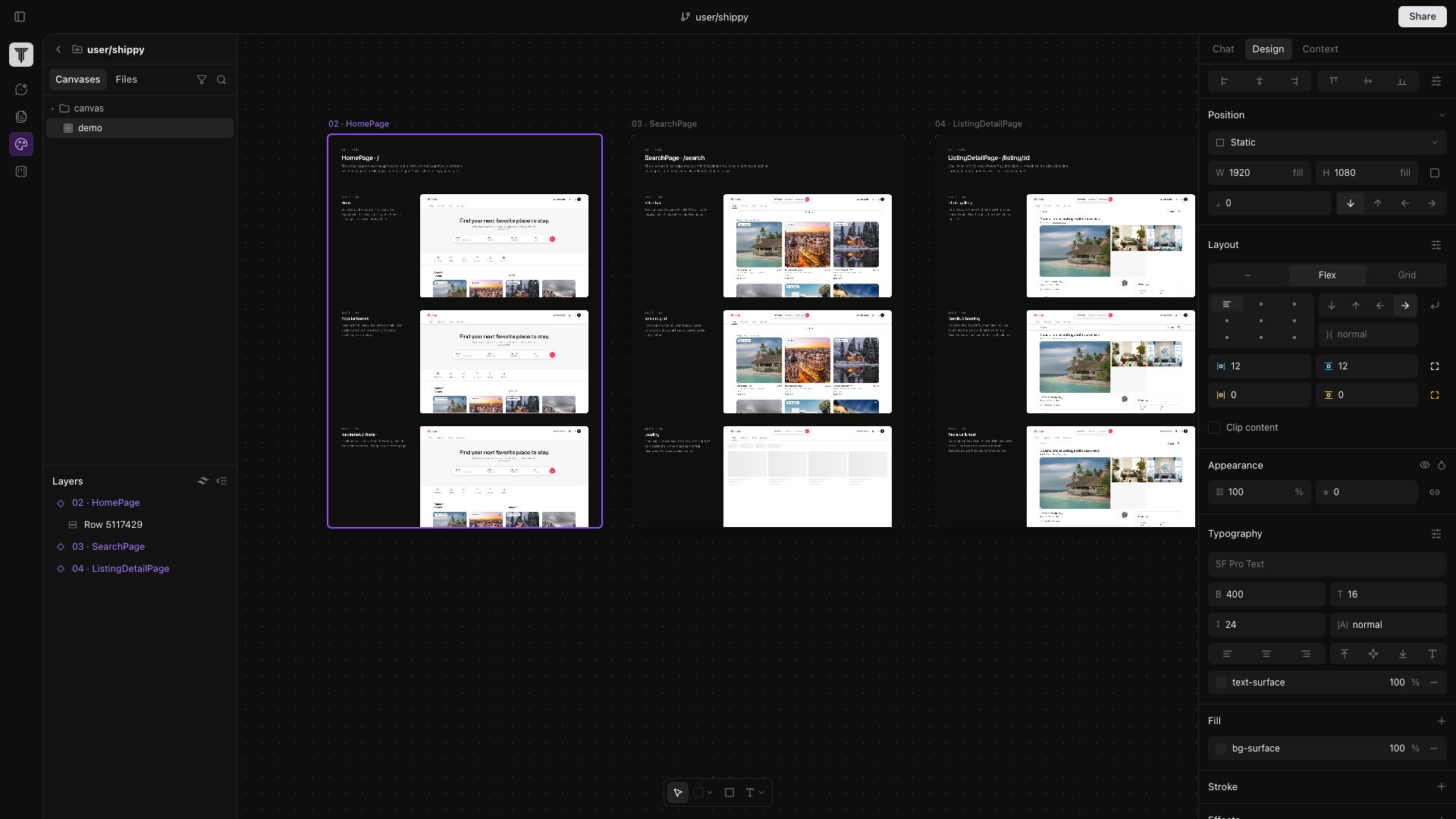
Storyboards
A storyboard is a typed React export inside anindex.canvas.tsx file under tempo/designs/canvases/. Each export becomes a frame on the canvas. Storyboards are real code, so they commit to git like anything else — your designs version with the codebase they describe.
Create one in two ways:
- Right-click an empty area of the canvas → New Storyboard.
- Ask the AI: “make a storyboard for the signup flow.”
Editing on the canvas
- Style Panel (right side) — typography, colors, spacing, layout. Every change writes back to source.
- Drag and drop components from your codebase’s component library directly into frames.
- Select an element to jump to its definition in the codebase editor.
- Multi-select and group to compose larger layouts.
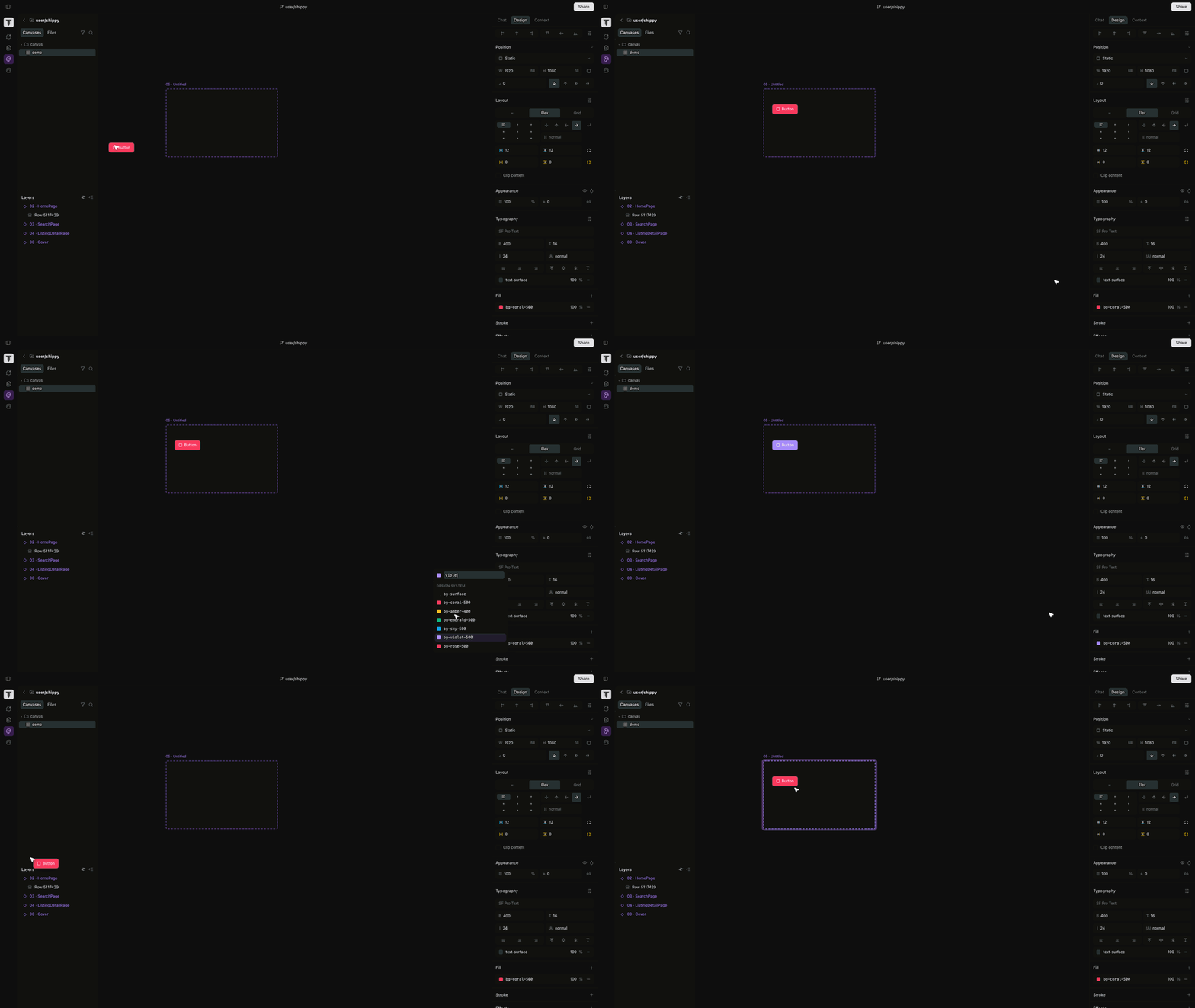
How the canvas stays in sync with code
When you open a workspace, Tempo starts your dev server in the background (Vite, Next.js, whatever your project uses — see Setup & Run Scripts). Canvas iframes point at that dev server, so every code change hot-reloads on the design surface and every design edit triggers a real file write. This is the unified context layer in practice: your designs are your code.What lives next to the canvas
- Link a canvas to a doc so the PRD is one click away from the design.
- Link a canvas to an Issue so the card shows the design as a preview.
- Link a canvas to a chat session so the agent can read the storyboards it’s about to modify.